
Download CapTrue – Free, Secure Windows Screen Capture Tool for Screenshot & Video Recording
Why CapTrue Is the Smart Upgrade to Windows’ Built-in Screen Capture
If you've ever used the Print Screen key on Windows, you know it’s simple—but limited. It captures either the entire screen or the active window, offering little flexibility. Enter CapTrue, a lightweight and free software designed to enhance your native screen capture experience without the bloat of full-featured screen recording tools. Instead of replacing Windows’ built-in functionality, CapTrue intelligently expands it, adding a third capture mode: user-defined area. This means you can now select a specific region of your screen with precision—perfect for capturing tutorials, highlighting text, or sharing UI elements without unnecessary clutter.
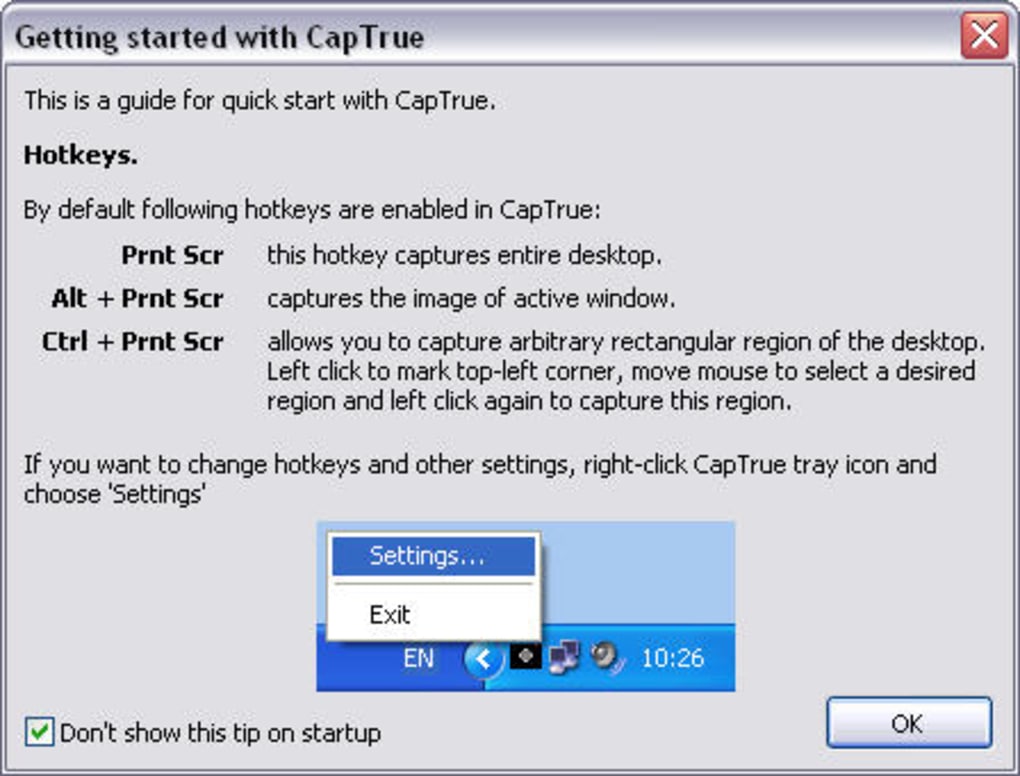
One of CapTrue’s standout features is its customizable hotkeys. You can assign unique keyboard shortcuts to each capture mode—whole screen, active window, or custom area—so you can trigger screenshots instantly, even during fast-paced workflows. Whether you're a student taking notes, a content creator producing tutorials, or a professional sharing project updates, this level of control boosts efficiency. The app runs quietly in the background, consuming minimal system resources, making it ideal for older machines or multitasking environments.
CapTrue also supports video recording, a feature many similar tools lack. This allows you to capture short screen sessions—great for demonstrating software features or documenting bugs. You can save recordings in multiple formats, giving you flexibility depending on your needs. Whether you're sharing via email, uploading to a platform, or archiving, CapTrue ensures your media is compatible and ready to use. With automatic file naming and the option to copy to clipboard or save directly, CapTrue streamlines your workflow from capture to sharing.
Powerful Features That Make CapTrue a Must-Have for Windows Users
CapTrue isn’t just about adding a new capture mode—it’s about refining the entire screenshot experience. The app integrates seamlessly with Windows 10 and Windows 11, ensuring compatibility without requiring complex setup. Its feature set is thoughtfully designed for both casual users and professionals who demand precision.
- Three Capture Modes: Full screen, active window, and customizable region—ideal for diverse use cases.
- Customizable Hotkeys: Assign unique shortcuts to each mode for lightning-fast access.
- Video Recording: Capture screen activity with audio (if enabled) and save in multiple formats.
- Automatic File Saving: Save screenshots with sequential filenames to avoid overwrites.
- Clipboard Integration: Copy captures directly to the clipboard for immediate pasting into documents or emails.
- Multiple Export Formats: Save images in PNG, JPG, BMP, and more—ensuring compatibility across platforms.
Another major advantage is CapTrue’s lightweight design. At just a few MB, it doesn’t slow down your system or consume significant RAM. This makes it perfect for users who want a no-frills, reliable tool without sacrificing performance.
The interface is minimal and intuitive—no confusing menus or overwhelming options. You launch the app once, set your preferences, and forget about it. It runs silently in the system tray, ready to respond to your hotkeys at any moment.
For educators and remote workers, the ability to capture and share precise screen regions is invaluable. Imagine explaining a complex software interface—instead of showing the entire screen, you can highlight just the relevant section. CapTrue makes this effortless. The video recording feature is also a game-changer for creating quick walkthroughs or training materials, all without needing expensive software.
How to Install and Use CapTrue on Windows 10 & 11
Getting started with CapTrue is quick and straightforward. First, download the installer from the official website. The file is small and secure, with no bundled ads or third-party software—just a clean, trustworthy download. Once downloaded, run the installer and follow the on-screen prompts. The installation process takes less than a minute and doesn’t require admin rights on most systems.
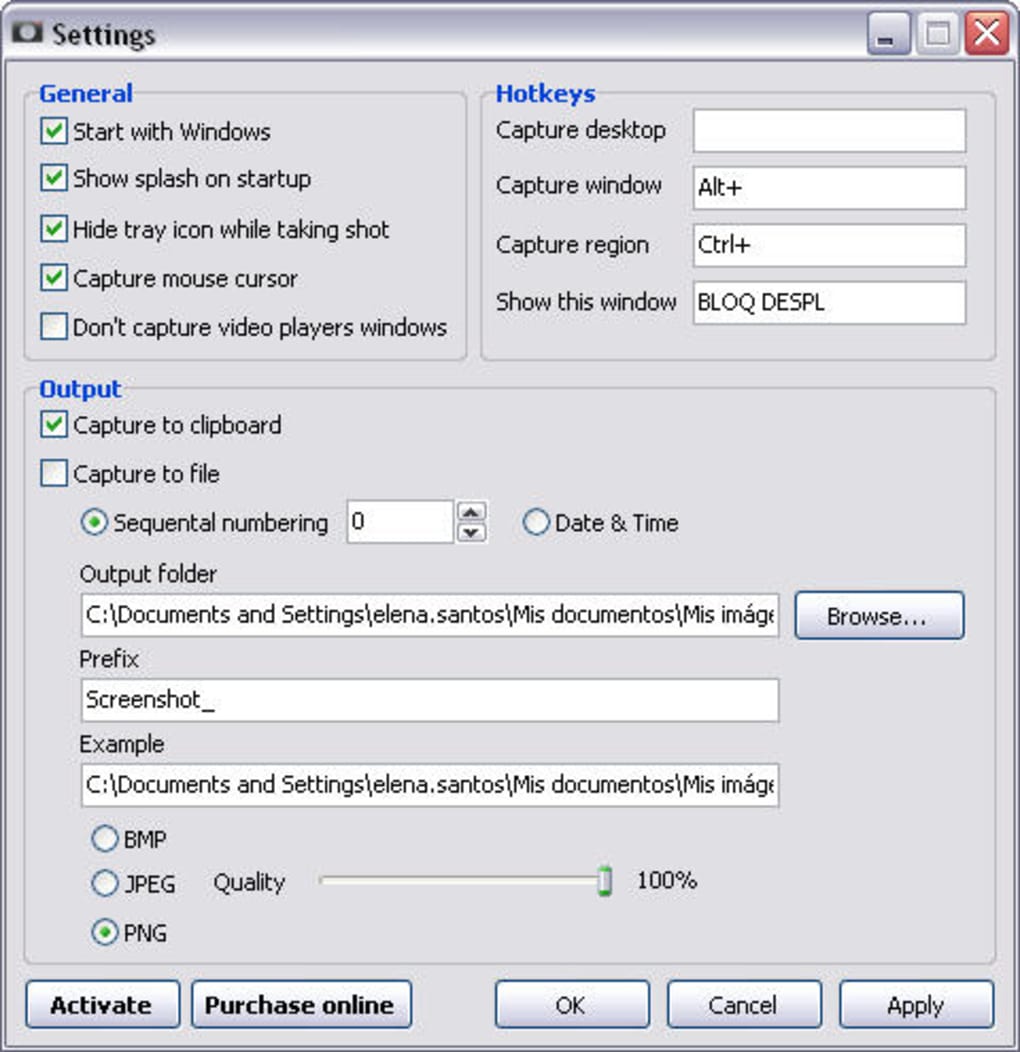
After installation, launch CapTrue from the Start menu or system tray. The app opens with a simple settings panel where you can customize your preferences. Begin by setting your preferred hotkeys for each capture mode. For example, you might assign Ctrl+Shift+1 for full screen, Ctrl+Shift+2 for active window, and Ctrl+Shift+3 for a custom region. These shortcuts are fully customizable, so you can pick keys that work best with your workflow.
Next, configure your output settings. Choose whether you want screenshots saved automatically or copied to the clipboard. If saving, select your preferred folder and file format. CapTrue supports PNG (lossless), JPG (smaller files), and BMP (high quality). You can also enable automatic sequential naming to prevent file conflicts.
For video recording, ensure your microphone is properly set up if you want to include audio. Then, press your assigned hotkey to start recording. The app will display a small overlay to indicate recording is in progress. Stop the recording with the same hotkey or via the system tray icon. The video will be saved in your chosen format and location.
CapTrue updates automatically in the background, ensuring you always have the latest version with bug fixes and performance improvements. There’s no need to manually check for updates—just keep the app running, and it handles everything.
Compatibility, Pros, and Cons: Is CapTrue Right for You?
Operating System Compatibility
CapTrue is designed exclusively for Windows and works seamlessly on Windows 10 and Windows 11. It’s not available for Mac, Android, or iOS, so users on other platforms will need to look elsewhere. However, for Windows users, it’s a reliable, lightweight solution that doesn’t require high-end specs.
Pros
- Enhances native Windows screenshot functionality without bloat
- Free to download and use with no hidden costs
- Supports three capture modes: full screen, active window, and custom region
- Customizable hotkeys for instant access
- Video recording with multiple export formats
- Automatic file saving with sequential naming
- Minimal system resource usage
- Secure download with no ads or malware
Cons
- Lacks basic image editing tools (crop, annotate, etc.)
- No support for Mac, Android, or iOS
- Video recording quality may vary depending on system performance
- Interface is minimal—some users may want more customization
FAQ: Everything You Need to Know About CapTrue
Is CapTrue free to download and use?
Yes, CapTrue is completely free to download and use. There are no premium features or subscription models. The software is supported through optional donations and is designed to remain ad-free and secure.
Can I use CapTrue on Windows 11?
Absolutely. CapTrue is fully compatible with Windows 11 and has been tested to work seamlessly with the latest updates. It integrates well with the modern Windows interface and features.
Does CapTrue support video recording?
Yes, CapTrue includes video recording functionality. You can capture screen activity with audio (if enabled) and save recordings in various formats like MP4 or AVI, depending on your settings.
Can I edit screenshots after capturing them?
CapTrue does not include built-in editing tools. However, you can copy screenshots to the clipboard and paste them into image editors like Paint, Photoshop, or online tools for editing.
How do I change the hotkeys in CapTrue?
Open the CapTrue app from the system tray, go to the settings menu, and select “Hotkeys.” From there, you can assign or reassign shortcuts for each capture mode (full screen, active window, custom region).
Final Verdict: CapTrue Is a Lightweight Powerhouse for Windows Users
CapTrue is more than just a screen capture tool—it’s a smart enhancement to Windows’ built-in functionality. With its three capture modes, customizable hotkeys, video recording, and automatic file saving, it delivers a powerful yet lightweight experience. While it lacks basic editing features, its core purpose—improving screenshot and recording workflows—is executed flawlessly.
For anyone using Windows 10 or 11 who wants a free, secure, and efficient way to capture screens and videos, CapTrue is an excellent choice. It’s ideal for students, professionals, educators, and content creators who value speed and simplicity.
Download CapTrue today and transform your screen capture experience—no extra software, no hassle, just instant, high-quality results.







